Kanban on iPhone Duo: your boards on both displays
What a planner should do on a phone that opens, and how Hense lays out your Kanban boards on the outer display, on the inner display, and in Split View.
The short answer. Hense is a Kanban board and planner app that adapts to both displays of iPhone Duo. Closed, you swipe through a board one column at a time. Open, your boards sit in a sidebar next to the board, the way they do on an iPad. Folding or unfolding keeps you on the same board, and a card you had open stays open. Hense has worked this way since version 1.2.3 (October 22, 2026), it is free to start on the App Store, and it needs no account.
What a planner should do on a phone that opens
iPhone Duo has a 5.4-inch outer display and a 7.6-inch inner display (Apple’s specifications). It is a phone in your pocket and something close to a small tablet on a table, so a planner has to be good at both. Four things to look for:
- It changes its layout, not only its size. A phone screen stretched across 7.6 inches wastes the room. The inner display is wide enough for a list of boards and a board at the same time.
- It keeps your place. You open the phone because you want to see more of what you were looking at. Landing back on a start screen defeats the point.
- It still works at half size. In Split View each app gets half of the inner display, so the app needs a good narrow layout too.
- It exists on your other devices. A plan that lives on one phone is a plan you end up copying to your Mac by hand.
Hense on iPhone Duo, closed and open
| Closed (outer display) | Open (inner display) | |
|---|---|---|
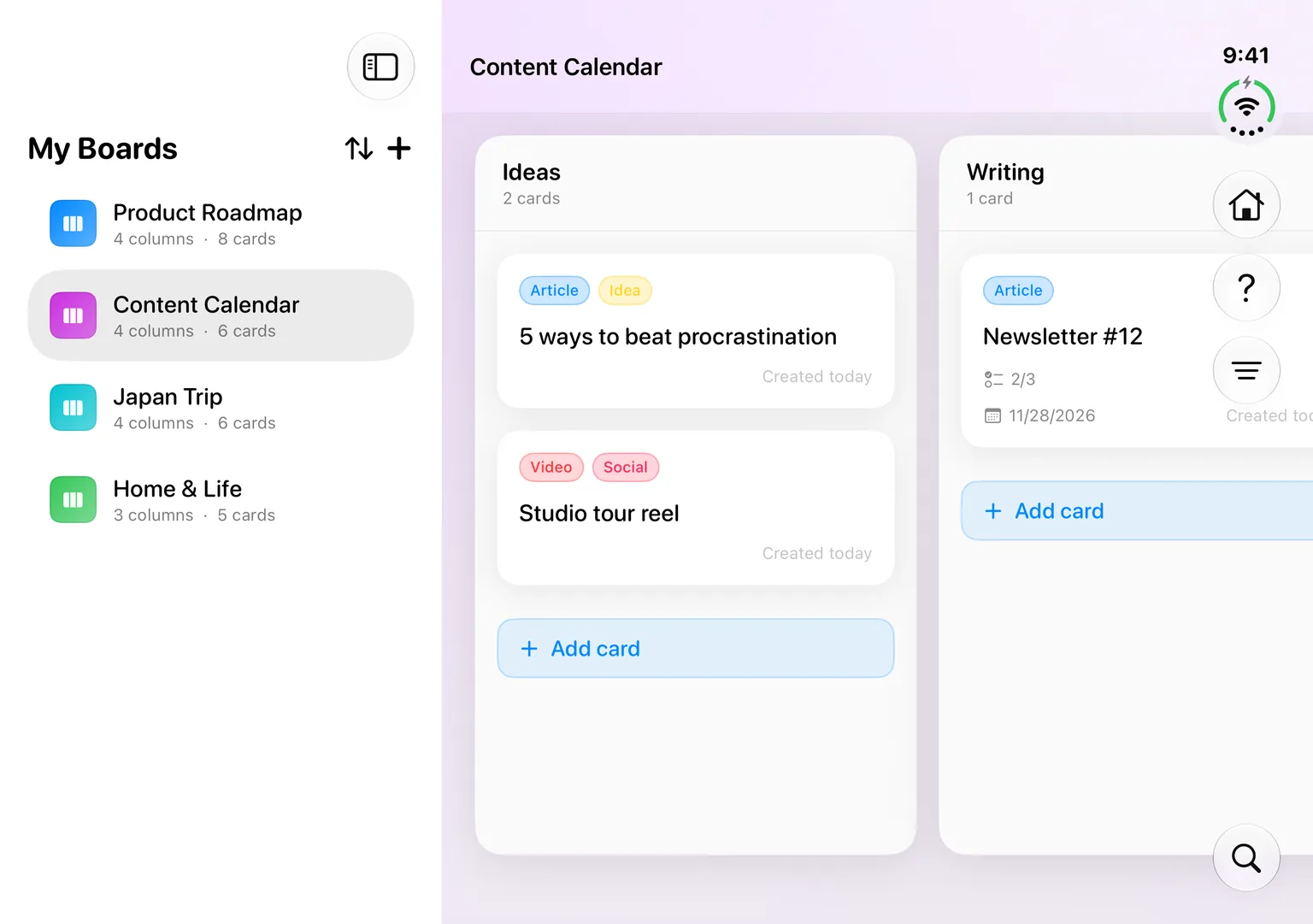
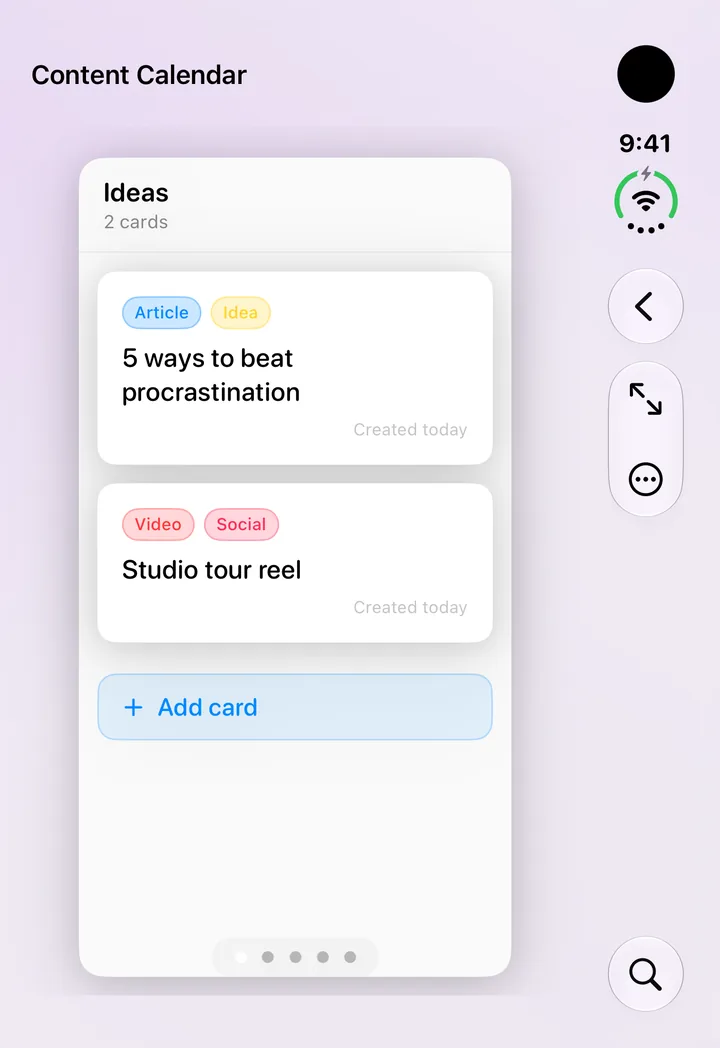
| Boards | A list. Tap a board to open it. | A sidebar beside the open board. |
| Columns | One at a time, with dots for the rest. A button switches to a view with several columns. | Side by side: one full column and most of a second next to the sidebar, or two and most of a third with the sidebar hidden. |
| Moving a card | Long-press it and choose Move to Column, or drag it in the view with several columns. | Drag it to the next column. |
| Search | A button at the bottom right. | The same button, with the results over the board. |
| Good for | Adding a card, checking today’s column, moving one thing to Done. | Planning the week, reordering a long column, seeing a whole project. |
What happens when you fold or unfold
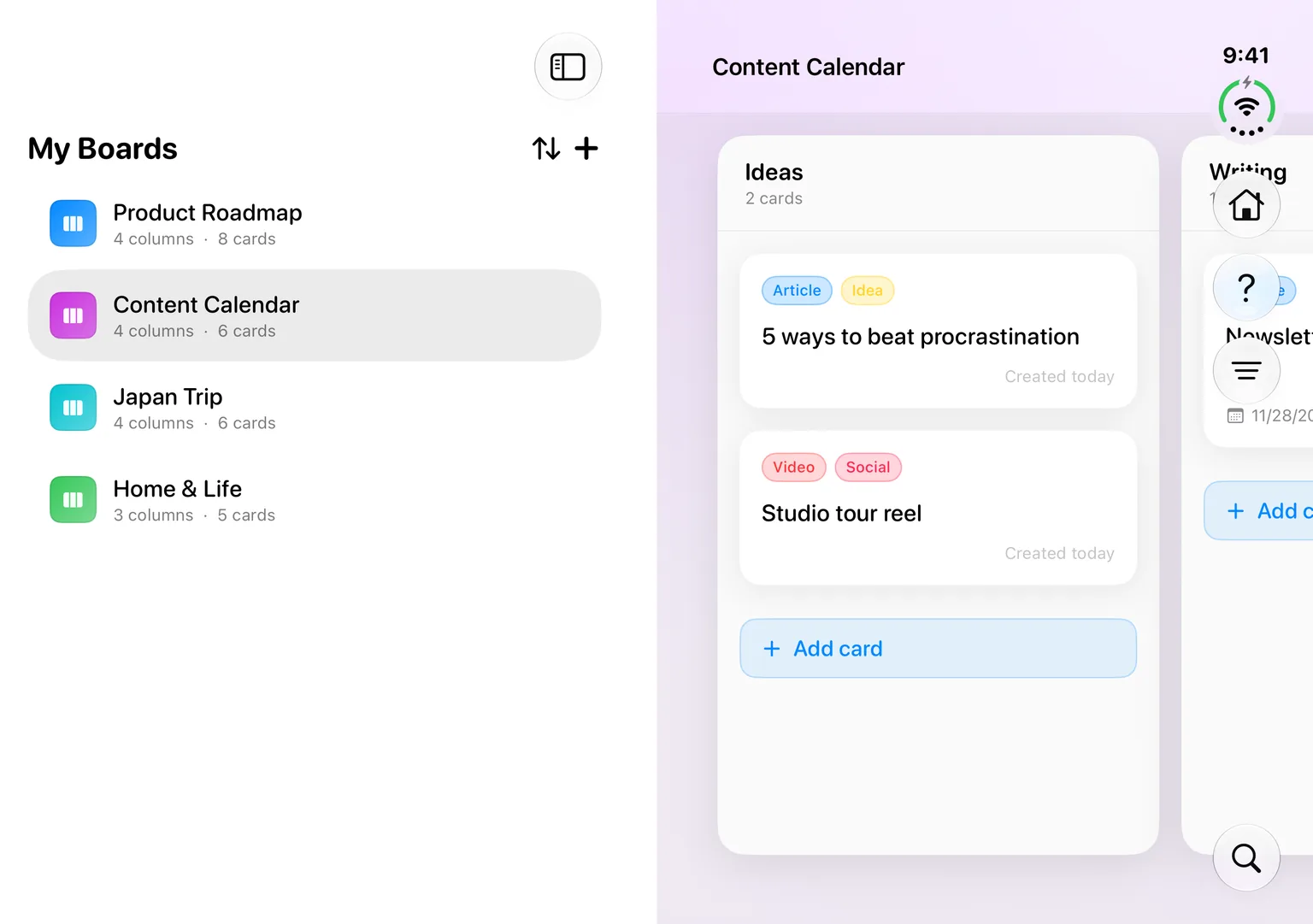
- The board stays. Open the phone on a board and you get that board with your sidebar beside it. Close it and you are on the same board, one column at a time.
- An open card stays open. If you are in a card when you fold or unfold, you are still in it afterward.
- Your closed view is remembered. If you prefer several columns at once on the outer display, that choice is still there after you open the phone and close it again.
- Half open works too. Fold the phone partway, like a book, and Hense splits at the crease: your boards on one half, the board on the other.
Set up a board on iPhone Duo
In Hense
- Install Hense from the App Store. If you already use it on another iPhone, an iPad, or a Mac, your boards appear as soon as iCloud syncs.
- Open the phone and tap the plus button at the top of the sidebar. Give the board a name and a color.
- Add your columns with Add Column at the right end of the board. Five columns per board are free. This Week, Today, Doing, and Done is a good first set.
- Make the last one a Done column. Long-press its header, choose Edit Column, and turn on Done Column. Finished cards get a green check, and a date that has passed stops turning red.
- Add a few cards with Add card at the bottom of a column, then drag one across to see how it feels on the big display.
- Sort your boards with the arrows button beside the plus, once you have two or more: Newest First, Oldest First, or Name.
- Close the phone. The same board is there, one column at a time.
Two apps at once: Hense in Split View
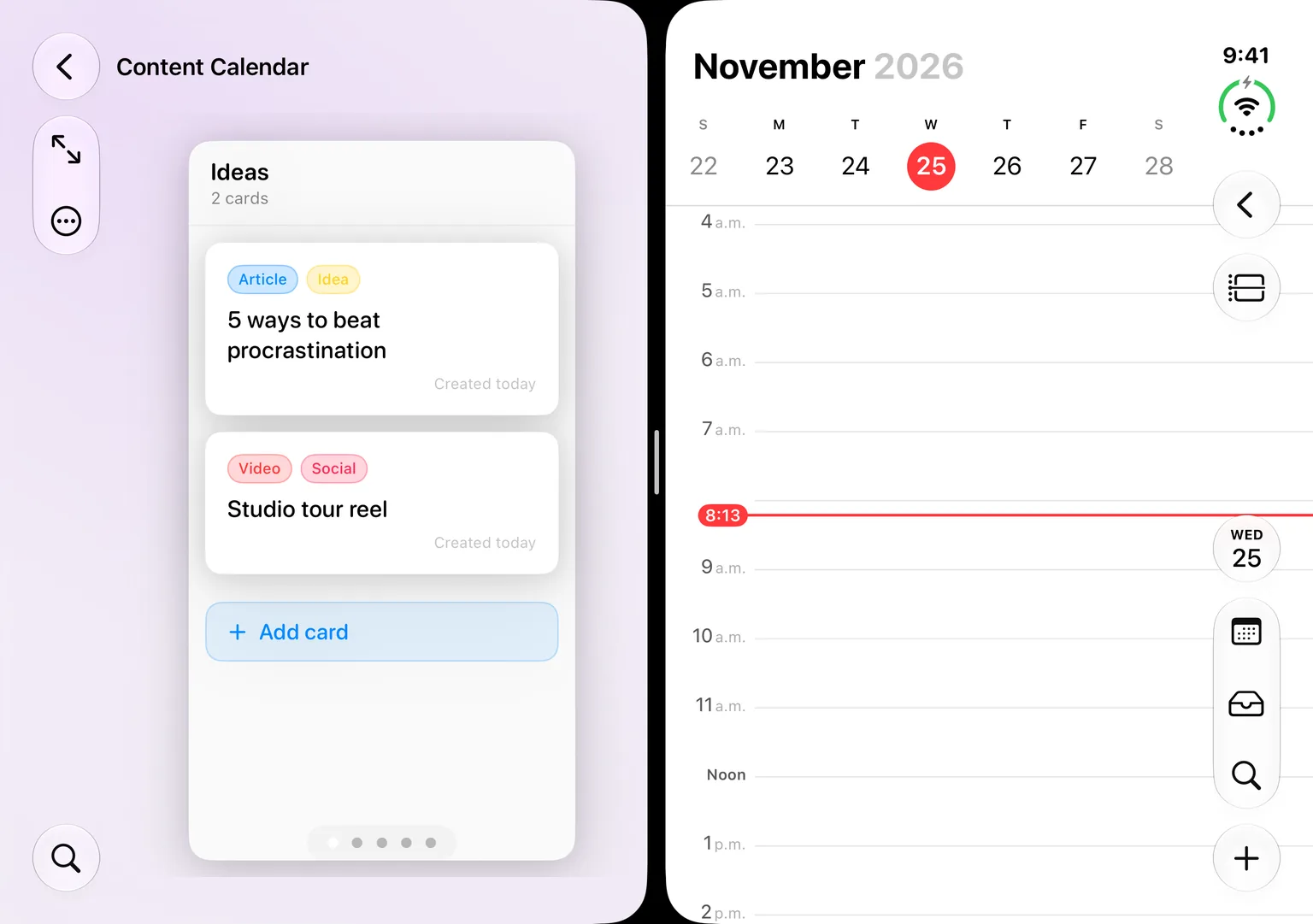
Split View works when iPhone Duo is open in landscape. Touch and hold an app on the Home Screen or in App Library, tap Open in Split View, then tap the second app (Apple’s steps). Hense takes half of the display and shows one column at a time, on the board you already had open.
Three pairs worth keeping:
- Calendar and Hense. Appointments on one side, the week’s cards on the other. This is the closest thing to a paper planner the phone can do.
- Mail and Hense. Read the message, add the card, and keep the message on screen while you write it.
- Safari and Hense. Copy a link into a card while you research. Since version 1.2.2, a link in a card’s name or description opens from the card with a tap.
How to tell which apps are optimized for iPhone Duo
Three checks, from most to least reliable:
- Open the phone with the app on screen. If the layout changes (a sidebar appears, a second column shows up), the app has been adapted. If everything only gets bigger, it has not.
- Read the release notes on the app’s App Store page, from October 2026 on.
- Look for the Made for iPhone Duo badge on the App Store page. It helps, but it is not the whole list: Apple says the badge appears once a developer submits iPhone Duo screenshots, so an app can support the phone and not show the badge yet.
iPhone Duo or iPad for planning?
If you own an iPad, keep the long planning sessions there. A 13-inch iPad fits four Hense columns in landscape with the sidebar hidden, and it takes a keyboard; the iPad guide covers that setup. The case for iPhone Duo is different: it is the one you have with you, and open it shows enough of a board to plan rather than only check.
You do not have to choose. Hense is one app on iPhone, iPad, and Mac, and the boards are the same everywhere through your own iCloud. A good split is to plan the week on whichever screen is bigger and run it from your phone.
What Hense does not do on iPhone Duo
- No second Hense window. Split View pairs Hense with another app. Two boards side by side is a Mac feature today.
- No handwriting. Cards are text, dates, checklists, labels, links, and attachments, not drawings.
- No notifications. A due date turns orange on the day and red after it. For an alarm, use Reminders or Calendar.
Frequently asked questions
Does Hense work on iPhone Duo?
Yes. Since version 1.2.3, released on October 22, 2026, Hense adapts to both displays: one column at a time when the phone is closed, and a sidebar with your boards beside the open board when it is open. Folding or unfolding keeps the board you were on.
Is there a Kanban app for iPhone Duo?
Yes. Hense is a native Kanban app for iPhone, iPad, and Mac that uses both iPhone Duo displays. Open, the columns sit side by side and you drag cards between them. Closed, you swipe through the columns one at a time.
What is a good planner app for iPhone Duo?
It depends on what you plan. For tasks and projects on a board, Hense uses both displays and is free to start. For appointments and time blocks, Apple’s Calendar is already on the phone, and it pairs well with Hense in Split View.
Do I lose my place when I fold the phone?
No. The board you had open stays open, and so does a card you were looking at. Only the layout around it changes.
Can I use Hense next to another app on iPhone Duo?
Yes, in Split View, with iPhone Duo open in landscape. Hense takes half of the inner display and shows one column at a time, so you can keep Calendar, Mail, or Safari on the other half.
Do I need Hense Pro for the iPhone Duo layouts?
No. Both layouts, Split View, drag and drop, and iCloud sync are in the free version, along with 2 boards of up to 5 columns each. Hense Pro is a one-time $9.99 USD purchase that removes the limits. It is not a subscription.